USB connection
Connect through USB/PTP instead of adding an HDMI capture card to your desk.
 ViewportCam
Canon DSLR webcam for Mac
Connect a compatible Canon EOS camera to your Mac over USB, enable ViewportCam’s native camera extension, and select it in Zoom, Google Meet, OBS, or another Mac video app.
No HDMI capture card required · 14-day free trial
Connect through USB/PTP instead of adding an HDMI capture card to your desk.
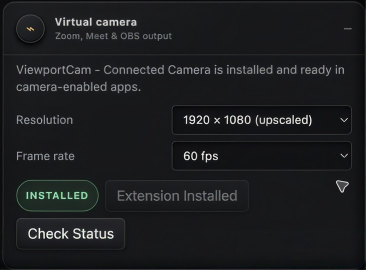
Publish the connected camera through a native macOS camera extension for compatible video apps.
Choose 1920×1080, 1280×720, 960×540, or 640×360 output and common output frame rates.
The 1920×1080 option is an upscaled output from the camera’s USB live-view feed, not a native 1080p source. Actual source motion depends on the camera’s USB live-view frame rate.
Before you join a call—or instead of joining one—use ViewportCam for a full-screen preview, supported camera controls, photo capture, in-camera movie recording, and camera-file downloads.